Cutoff Photo and Video Slider
WordPress documentation
Galleries, presets, shortcodes and WooCommerce product integration.
How the plugin is organized
Create your content in Galleries Manager, choose its appearance in Presets Manager, then add the slider to a page with a shortcode or assign it to a WooCommerce product.
- A gallery contains categories.
- A category is one accordion panel. It has a title, optional description, click action and media items. Its first photo or video is the cover.
- An item is a photo or video, with optional captions and a deep link ID.
- A preset controls layout, motion, colors, captions, navigation and effects. You can reuse it with different galleries.
The screenshots below show the current plugin backend, using My gallery and its Butterfly category. Your names, media and saved settings can be different.
Install and activate
The plugin requires WordPress 6.5 or newer, PHP 8.0 or newer and a browser with WebGL support. WooCommerce is optional.
- Extract your download and locate the installable cutoff-photo-and-video-slider.zip plugin archive.
- Open Plugins > Add New Plugin > Upload Plugin, choose the archive, install it and activate Cutoff Photo & Video Slider.
- Open FWD Cutoff Photo & Video Slider in the WordPress sidebar. Its menu includes Presets Manager, Galleries Manager, Documentation and Support.
For a manual installation, upload the
cutoff-photo-and-video-slider folder to
wp-content/plugins/, then activate it on the Plugins screen. Upload
the plugin folder, not the entire download package.
Create a gallery
- Open Galleries Manager and click Add New Gallery.
- Enter a unique Gallery name. The optional gallery image is a reference thumbnail in the manager.
- Confirm the dialog, then click Edit Categories on the gallery card.
- After making changes, click Update Gallery. At the top-level gallery list, the save button is labeled Update Galleries.
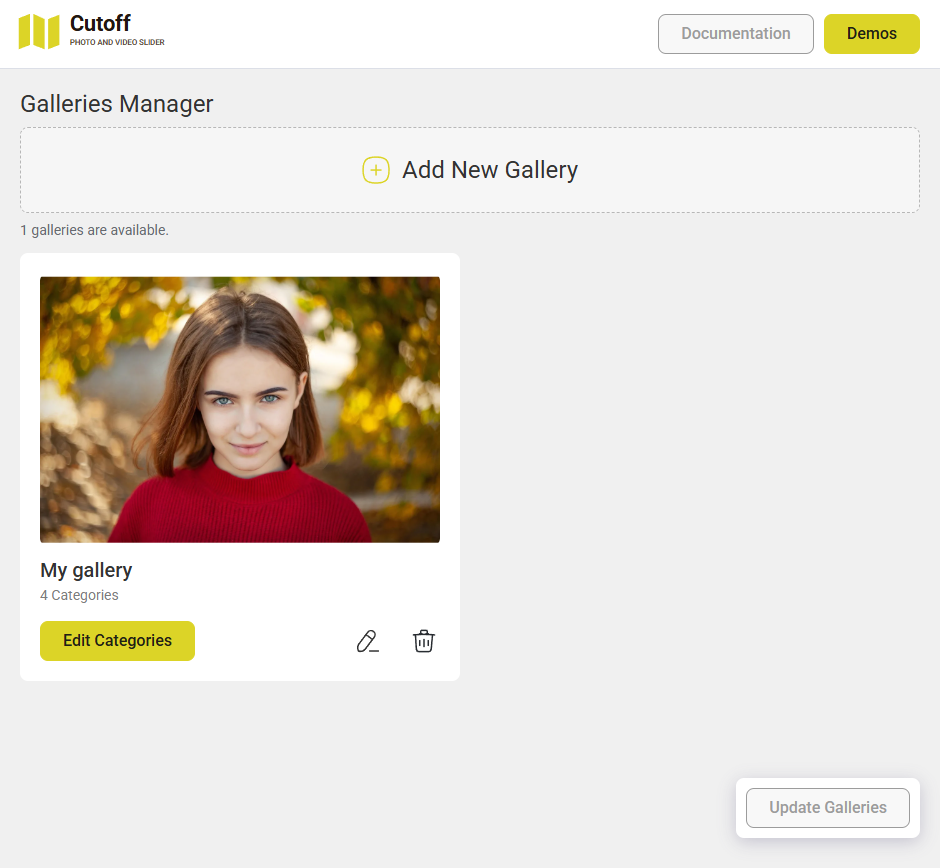
The pencil edits gallery details. The trash button removes the gallery after confirmation. Removing a gallery, category or item does not delete its files from the Media Library.
Confirming a dialog does not replace saving the gallery. Click the update button and wait for the save confirmation before leaving. A disabled update button means there are no pending changes.
Categories and click actions
Click Add New Category and enter a category name. The optional description appears below its accordion title. The pencil on a category card opens these settings again.

| Click action | Result |
|---|---|
| Open category | Centers and expands the selected panel into its own photo and video gallery. |
| Open link | Opens the configured Link URL. Choose New tab or Current tab in Open link in. |
| No action | Centers the panel without opening a category or link. Dragging and hover effects remain available. |
The action belongs to the category, not to each media item. If Use Action Only On Center Mesh is enabled in the Accordion preset tab, the first click on an off-center panel only centers it. Click it again once centered to run its action.

Drag category cards to change the accordion order. To change a cover, open Edit Items and drag the desired media item into first position. Save with Update Gallery. Empty categories need at least one media item before they can appear in the slider.
Photos, videos and captions
Click Edit Items on a category, then Add New Item. The first item carries the Cover badge and supplies the category's accordion photo or video.
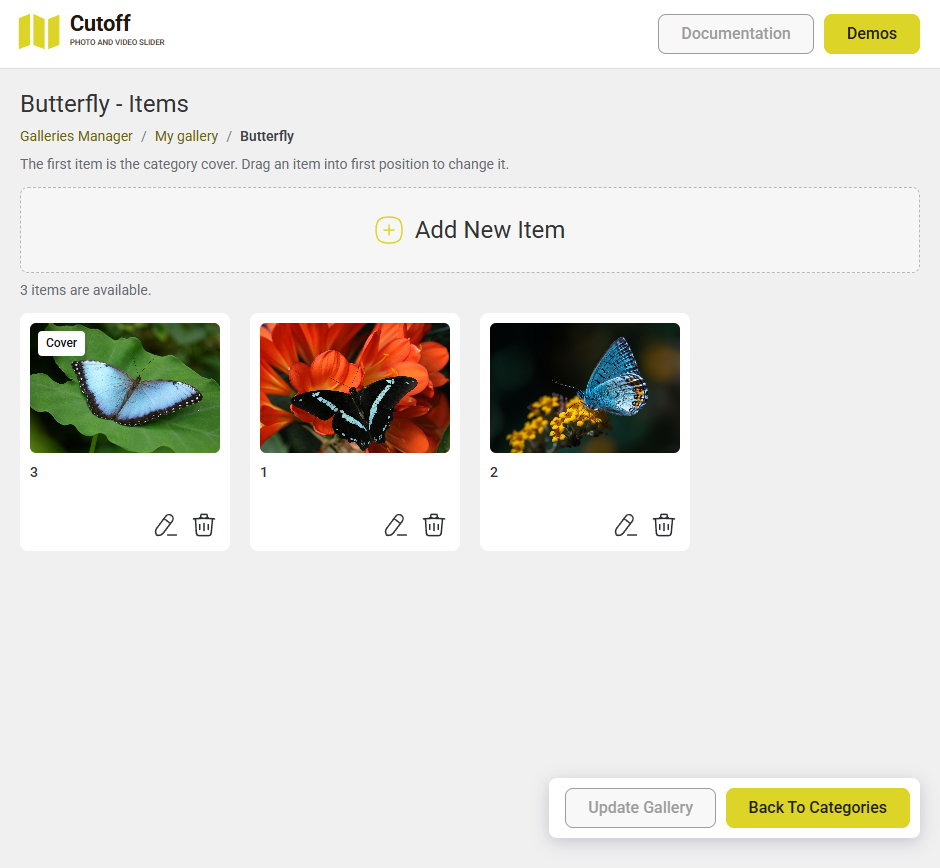
| Field | How to use it |
|---|---|
| Item name | A unique name within the category for identifying the item in the manager. Its visible caption is set separately. |
| Photo or video URL | Click Choose media and select or upload a file in the Media Library. This read-only field is filled automatically. |
| Video poster URL | For videos, click Choose poster and select a matching still image. The field is read-only. Leave it empty for photos. |
| Media width / Media height | Read-only dimensions detected from the selected file. They preserve the media's proportions. |
| Caption title | Optional heading over this item in the opened category. Leave empty to omit it. |
| Caption description | Optional smaller text below the caption title. Keep it brief, or leave empty. |
| Alternative text | A short description of what the photo or video shows. |
| Deep link ID | An optional stable identifier for shared links. Use a unique value within the category. See Deep linking. |

Confirm the dialog, then click Update Gallery. A category can mix portrait and landscape photos, PNG images and videos.
Video playback
Visible videos autoplay muted, loop and play inline without controls. Hidden videos pause. A poster supplies the initial image while the video loads, including when a video is the category cover. Use a browser-compatible MP4 and a poster with matching proportions.
There is no built-in duration limit. The plugin plays your files as supplied and does not resize or transcode them. Higher bitrates and larger files require more bandwidth. Choose media sizes suitable for the space where the slider will appear.
Separate caption controls
Accordion captions controls category names, descriptions, numbers and photo/video counts on the main panels. Category captions controls titles and descriptions on individual opened items. Disabling one does not disable the other.
Fonts, sizes, weights, spacing, colors, gradients and reveal motion are configurable. Accordion photo/video counts automatically hide below 600 pixels gallery width. Captions are rendered in the Three.js scene with the images.
Presets and settings
A fresh installation includes Preset 1 through Preset 9, all with the same starting settings. Select a preset, edit its tabs and click Update Preset. Every slider using that preset receives the saved changes.
Reset Preset restores the current defaults in the editor. Save to apply the reset. Duplicate Preset creates a copy with a unique name. Save the new preset before using it. If you rename a preset or gallery, update shortcodes and product assignments that refer to its old name.

| Tab | What it controls |
|---|---|
| General | Responsive sizing, initialization, deep linking, background, preloader, shared movement sensitivity, black and white, opacity and sharpening. |
| Accordion | Full-height mode, cutoffs, parallax, bending, pointer response, intro timing, overlays, panel size and gap, mouse wheel, wrapping and click behavior. |
| Accordion captions | Visibility, inactive opacity, labels, counts, typography, padding, gradients and reveal motion. |
| Categories | Opened image spacing, bending and cutoffs, transitions, loading background, mouse wheel and image navigation colors. |
| Category captions | Image caption visibility, typography, spacing, colors and gradient. |
| Category navigation | Category arrows and dropdown visibility, labels, counters and arrow preview appearance. |
| Collection selector | Vertical accordion picker size, shape, captions, colors, mouse wheel and scrollbar. |
| Effects | Antialiasing, waves, flowmap, noise and grid distortion. |
| WooCommerce | Product image replacement position. Each product selects its preset and gallery. |
The complete settings reference explains the matching JavaScript options and ranges. WordPress creates the gallery host and initializes it automatically, so you do not need to enter JavaScript instance names or data element IDs.
Sizing, spacing and motion
Display Type: responsive fits the available width and calculates height using Max Height, Auto Scale and Auto Scale Start Width. The responsive minimum height is 450 pixels. The starting maximum height is 750 pixels.
Display Type: afterparent follows the host container's width and height. Give the container a height in your theme or page builder. Accordion Full Screen pins corners to the gallery canvas edges. It does not invoke the browser's fullscreen mode.
- Durations and delays use seconds. For example, 0.8 means 800 milliseconds.
- Accordion Item Gap and Category Item Gap use CSS pixels. Use 0 for connected accordion panels. Both gaps are halved below 600 pixels gallery width.
- Accordion Item Width and Accordion Item Height use scene units. Their ratio sets the resting panel proportions.
- Caption font sizes and padding use CSS pixels, with separate small-screen values where provided.
Accordion Cutoff Strength changes the slanted joins. Accordion Bend Strength changes the motion bend. Accordion Parallax Strength moves the image inside its panel.
Category Transition Duration controls opening and closing. Category Switch Duration controls the outgoing fold when selecting another category. Corner delays and side staggering also contribute to the sequence. See transition timing for the full explanation.
Navigation and colors
In Category navigation, enable Show Category Navigation Arrows, Show Category Navigation Select, both, or neither. Category arrows change the collection. Image arrows move between items inside the opened collection.
The collection selector uses a vertical accordion. The selected category stays marked and cannot be selected again. Mouse wheel input has independent switches for the accordion, opened category and collection selector.
| Change | Preset field |
|---|---|
| Opened gallery buttons | Categories > Category Button Color and Category Button Icon Color. |
| Scrollbar handle | Collection selector > Category Picker Scrollbar Thumb Color. |
| Scrollbar track | Collection selector > Category Picker Scrollbar Track Color. |
| Keyboard focus | Collection selector > Category Picker Focus Color. |
| Navigation wording | Label fields in Category navigation and Collection selector. Preserve placeholders such as {current}, {total} and {title}. |
The current presets use #eeeeef for the scrollbar
handle and next/previous buttons. These remain separate settings, so changing one
does not automatically recolor the other.
Place the slider on a page
- Create and save a gallery containing media.
- Choose a saved preset.
- Add a Shortcode block to a page or post. Paste the example below and replace both names with your saved names.
- Publish or update the page, then view it on the frontend.
[cutoff_slider preset_name="Preset 1" gallery_name="My gallery"]The Cutoff Photo & Video Slider helper on supported editing screens generates a shortcode from its preset and gallery selectors. Copy it into a Shortcode block or a shortcode-compatible builder widget. The helper does not insert the gallery automatically.
Names must match the saved records exactly. Multiple sliders can share a gallery or preset. If several sliders appear on one page, enable deep linking on only one of them.
Deep linking
- Open Presets Manager > General.
- Enable Deep Linking on the preset used by the page and click Update Preset.
- Open a category, move to an item and copy the URL after the transition settles.
https://example.com/gallery/#category=Butterfly&item=Blue_WingsThe category name supplies the category part. The item uses its Deep link ID, then its caption title, then a generated item number if both are empty. Spaces and punctuation become readable keys with underscores. Use stable, unique item IDs when publishing links.
Reloading a valid link opens its category and item. Browser Back and Forward can restore previous gallery routes. Closing the category removes the gallery's category and item parameters.
The screenshots show deep linking enabled in the current saved presets. A fresh or reset preset uses the plugin default, which is off. Check the preset assigned to the page.
WooCommerce product galleries
Use a product assignment to replace the normal product images. No shortcode is needed for this setup.
- Create a gallery with media and save a preset.
- Edit a WooCommerce product and find the Cutoff Photo & Video Slider metabox.
- Turn on Enable Cutoff, select the Preset and Gallery, then update the product.
- View the product on the frontend to check the replacement.

In Presets Manager > WooCommerce, choose the Cutoff position:
- Replace Product Image uses the theme's image column beside the product summary.
- Replace Product Image Full Width uses the product content width with the summary below.

Turn Enable Cutoff off to restore the normal gallery. Unassigned products retain their existing images. Assignments do not delete product images or Media Library files.
Classic product-gallery hooks and the WooCommerce Product Gallery and Product Image Gallery blocks are supported. The block editor keeps its normal WooCommerce preview. Check the frontend for the replacement. Full-width block placement stacks the nearest Columns block.
Custom product builders that bypass these hooks and blocks can place the shortcode in their templates. Automatic switching to a variation's WooCommerce image is not included.
JavaScript integration
The plugin mounts shortcode galleries automatically. Do not create a second
FWDCPAVS instance on the same host. For custom controls, access the
mounted instance or listen for its creation:
document.addEventListener('cutoff:created', (event) => {
    const gallery = event.detail.gallery;

    gallery.on('categoryOpened', (details) => {
        console.log('Category opened', details);
    });
});
Register the listener before initialization. If the gallery already exists, use its actual host ID:
const gallery = FWDCPAVS.get('fwdcpavs-gallery-0');

if (gallery) {
    console.log(gallery.getState());
    gallery.openCategory(0);
}
The example ID belongs to the first shortcode instance. Use the correct host when
a page has several galleries. FWDCPAVS.refresh() checks for new
shortcode markup inserted by a page builder. Removed hosts are destroyed
automatically.
Instances expose state, category and item navigation, playback, resizing and
destroy(). Subscribe with on(), once() and
off(). A cutoff:error host event contains initialization
errors in event.detail.error. See the
API reference and
events reference for the full
lists and payloads.
Troubleshooting
| Problem | Check |
|---|---|
| Slider missing | Activate the plugin, check the exact saved shortcode names and add media to at least one category. Check the frontend, not only the editor preview. |
| Changes not visible | Confirm the dialog, click Update Gallery or Update Preset, and check which preset the page uses. Clear any page or asset cache. |
| Deep link not updating | Enable General > Deep Linking in the assigned preset. Only one gallery should control the page hash. |
| Video not playing | Check the selected video, poster and detected dimensions. Open the media URL directly and confirm that the browser can play it. Only visible videos play. |
| Wrong accordion cover | Drag the desired media item into first position inside its category, then save the gallery. |
| Missing captions | Check the text fields and corresponding caption switch. Accordion photo/video counts intentionally hide below 600 pixels gallery width. |
| Setting appears inactive | Some controls depend on another switch. Flowmap strength needs flowmap enabled. Responsive height settings do not control an afterparent host. |
| Product images not replaced | Enable the product assignment, select valid saved names and update the product. The template must use supported WooCommerce hooks or blocks, or contain the shortcode. |
For a loading error, check the browser console and Network panel for the failing file. Include the exact error and page URL when contacting support.
Updates and saved data
Back up your site before updating, then replace the plugin files through your usual WordPress update process. Existing Cutoff galleries and edited presets are retained.
Deactivating or deleting the plugin does not remove saved galleries, presets or Media Library files. Reinstalling is therefore not a reset. Cutoff stores its data separately from other FWDesign plugins.
The frontend serves its runtime and Roboto fonts locally. Photos and videos load from the media URLs saved in your galleries.
Support
Open FWD Cutoff Photo & Video Slider > Support in WordPress, or use the links below. Include the page URL, plugin and WordPress versions, and steps to reproduce the issue.